


 72
72
After creating your Promethean account, sign in to your profile on any ActivPanel 9 connected to the Internet.
Tap the Sign In button on the Welcome screen, or select Sign in to Promethean after tapping the Guest icon in the bottom-left corner.
Select one of the options on the ‘Sign in’ screen to sign in to your Promethean account.
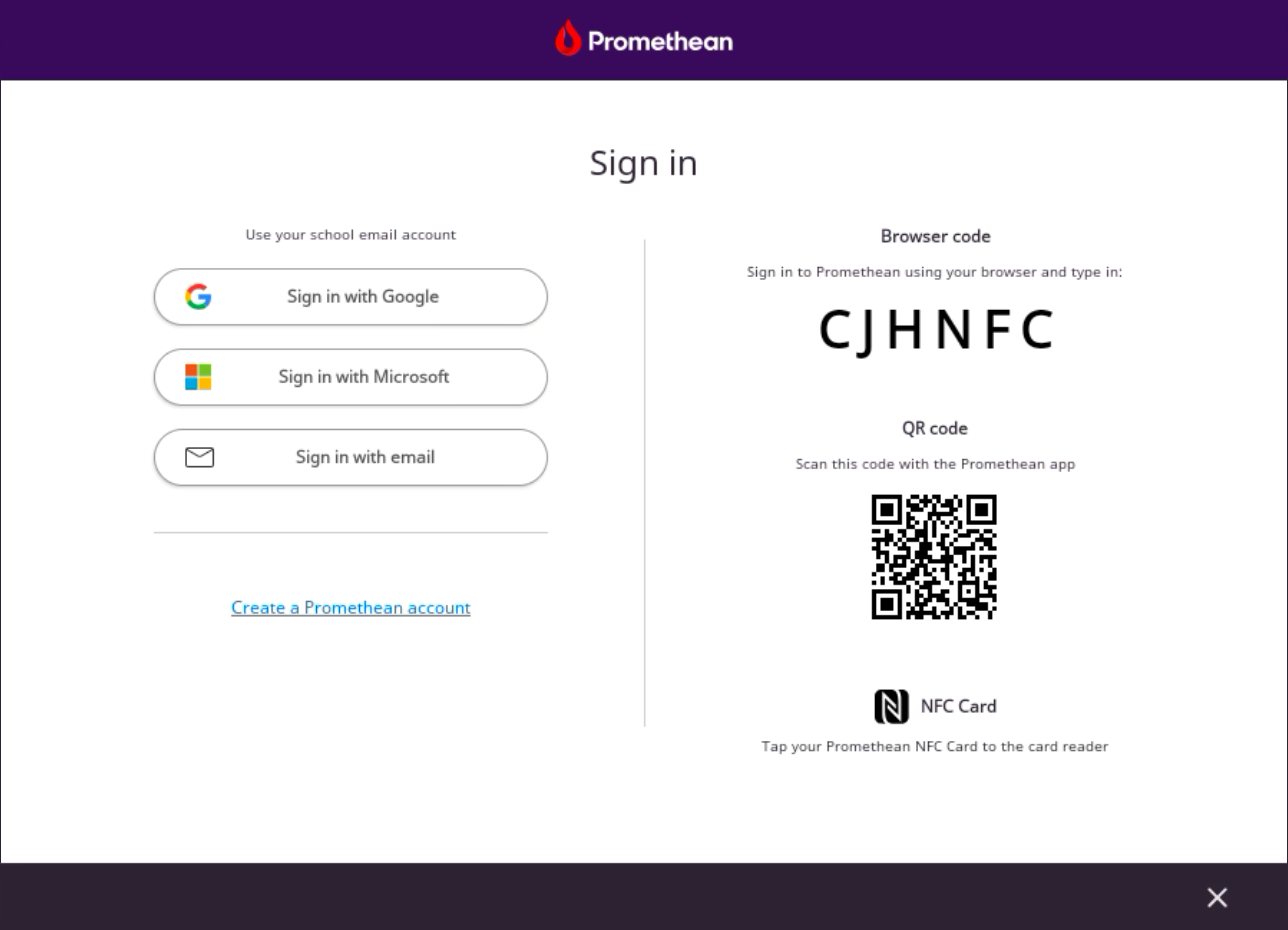
Sign-in with a Google account
Select Sign in with Google.
A web browser window will open, taking you to Google’s Sign In page. Enter your GUSD email address. You will be taken to the ClassLink login page. Enter your username and password and follow the MFA prompt.
Sign-in with a Browser code
Open a web browser and navigate to one.prometheanworld.com or launch the Promethean mobile app (version 4 or higher).
Sign in with the same option you used to create your Promethean account.
Find the option to sign in to ActivPanel 9 on your profile. On the web, this is visible on the landing page. In the mobile app, this option is available under the ‘ActivPanel 9’ tab.
Enter the 6-character code showing on the ‘Sign in’ screen of the panel to load your Promethean profile on ActivPanel 9.
Sign-in with a QR code
Launch the Promethean mobile app (version 4 or higher).
Sign in with the same option you used to create your Promethean account. Enter your email address and password to access your Promethean profile.
Within the app, find the option to scan the QR code under the ‘ActivPanel 9’ tab.
Scan the QR code displayed on the ‘Sign in’ screen of the panel screen to load your Promethean profile on ActivPanel 9.

